

How to Install Waka TV on Laptop using LDplayer Android Emulator
If you’re looking for a way to watch Waka TV on your PC, you’re in the right place. Waka TV is a popular streaming app that allows you to access live TV, sports, movies, and series right from your device. While it’s primarily an Android app, you can easily run it on your Windows laptop or desktop by using an Android emulator. In this guide, we’ll show you how to install Waka TV on your PC using LDPlayer, a lightweight and reliable Android emulator.
📌 Why Install Waka TV on a PC?
Before we dive into the steps, here are a few reasons why using Waka TV on your PC is a great idea:
- Bigger screen experience for movies and TV shows
- Better performance compared to phones with limited memory
- You can multitask while streaming
- No need to worry about mobile battery draining
Now, let’s get into the step-by-step tutorial.
🔧 Step-by-Step Guide to Install Waka TV on Your PC
✅ Step 1: Download and Install LDPlayer Emulator
To run Android apps on your computer, you need an emulator. In this case, we’ll use LDPlayer, one of the best options for Windows.
- Open your browser (Google Chrome or any browser you prefer).
- Go to the official LDPlayer website: https://www.ldplayer.net
- Click on the Download LDPlayer button.
- Once the installer is downloaded, double-click the file and follow the installation prompts.
- Launch LDPlayer after installation is complete.
Tip: LDPlayer works well even on low-end PCs, making it an excellent choice for streaming apps like Waka TV.
✅ Step 2: Open Chrome Inside LDPlayer
Once you’ve launched LDPlayer:
- From the home screen, click on the “System Apps” folder.
- Open the Chrome browser.
- In the Chrome search bar, type in:
wakatvapp.com
This is the official website where you can download the Waka TV APK file.
✅ Step 3: Download the Waka TV APK File
-
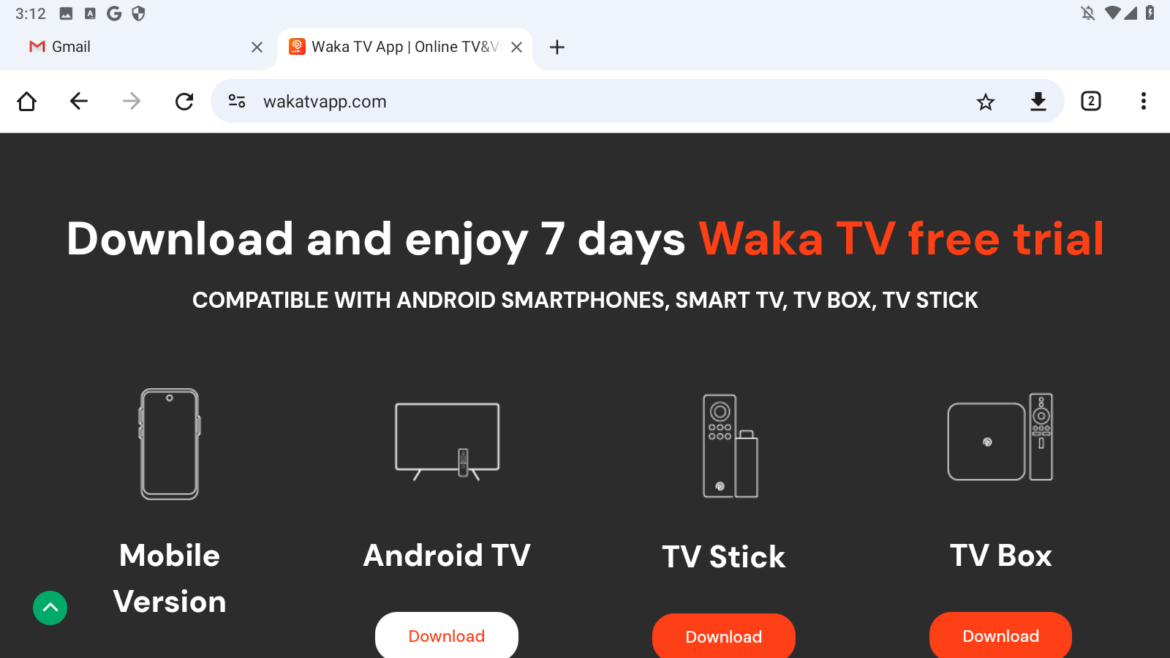
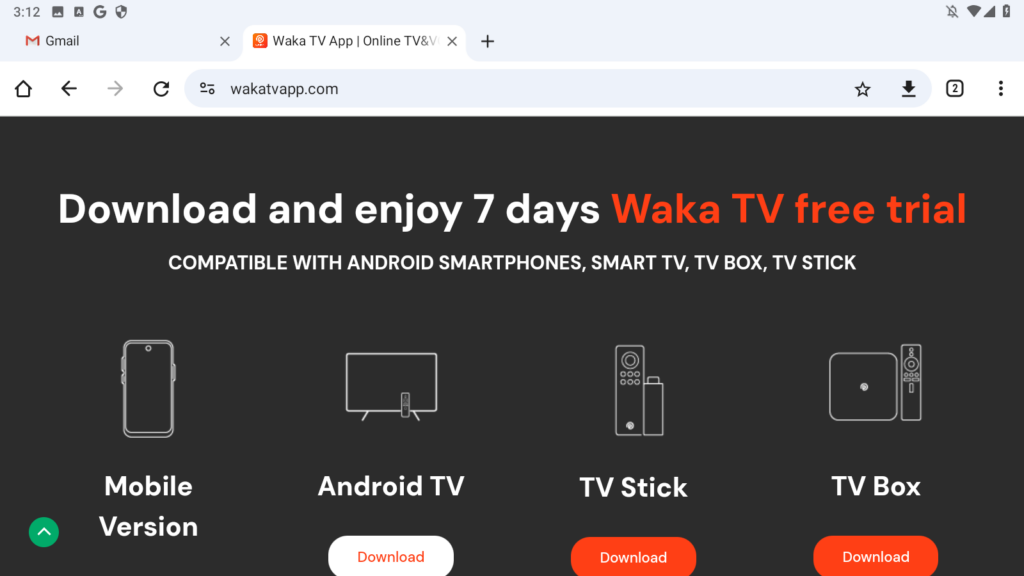
- When you’re on wakatvapp.com, look for the “Download ” button.
- You might be given four options to choose: Mobile Version, Android Tv, TV Stick and TV Box. For Laptop, Click the “Android TV” Option to begin the download.>br>
- A warning may pop up saying “This file might be harmful.”
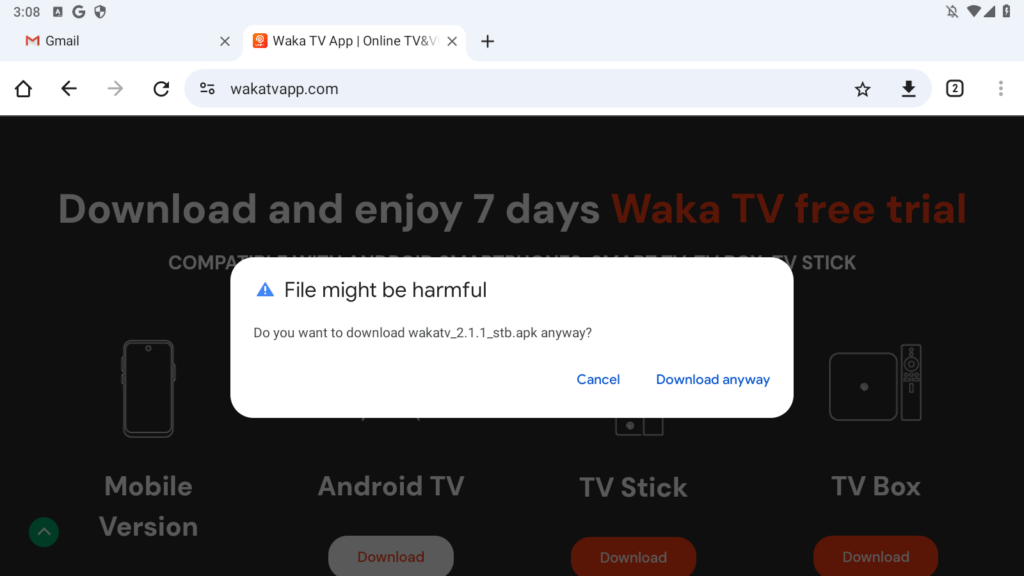
- Don’t worry — this is a common Android warning for third-party apps.
- Simply click on “Download anyway” to continue.
✅ Step 4: Install Waka TV APK on LDPlayer
After the APK file finishes downloading:
- You’ll see a notification at the bottom of the Chrome browser in LDPlayer.
- Click on “Open” or go to the “Downloads” folder to find the file.
- Click on the APK file to begin the installation.
- Tap “Install” and wait for a few seconds.
- Once done, you’ll see Waka TV app installed in your LDPlayer emulator.
✅ Step 5: Launch and Set Up Waka TV
- Go back to the LDPlayer home screen.
- Click on the Waka TV icon.
- The app will launch just like it would on an Android phone.
- Sign in or create a new account using your email or social media.
- You can now start watching live channels, movies, or sports!
🎉 Enjoy Waka TV on a Bigger Screen!
That’s it! You’ve successfully installed Waka TV on your Windows PC using LDPlayer. This method is safe, fast, and allows you to enjoy high-quality content without needing a smart TV or additional hardware.
💡 Final Tips
- Keep your emulator and app updated for the best experience.
- Use a VPN if certain streams are not working in your region.
- Connect your PC to a larger monitor or TV for the ultimate home-theater feel.
📌 FAQ
Q: Is Waka TV free to use?
A: Yes, Waka TV offers many free channels, but some premium content may require payment.Q: Can I install Waka TV without an emulator?
A: No, since Waka TV is an Android app, you’ll need an emulator like LDPlayer to run it on a PC.Q: Is LDPlayer safe to use?
A: Yes, LDPlayer is widely used and considered one of the safest Android emulators for PC.If you found this guide helpful, don’t forget to share it with others who want to enjoy Waka TV on a laptop or desktop.
