

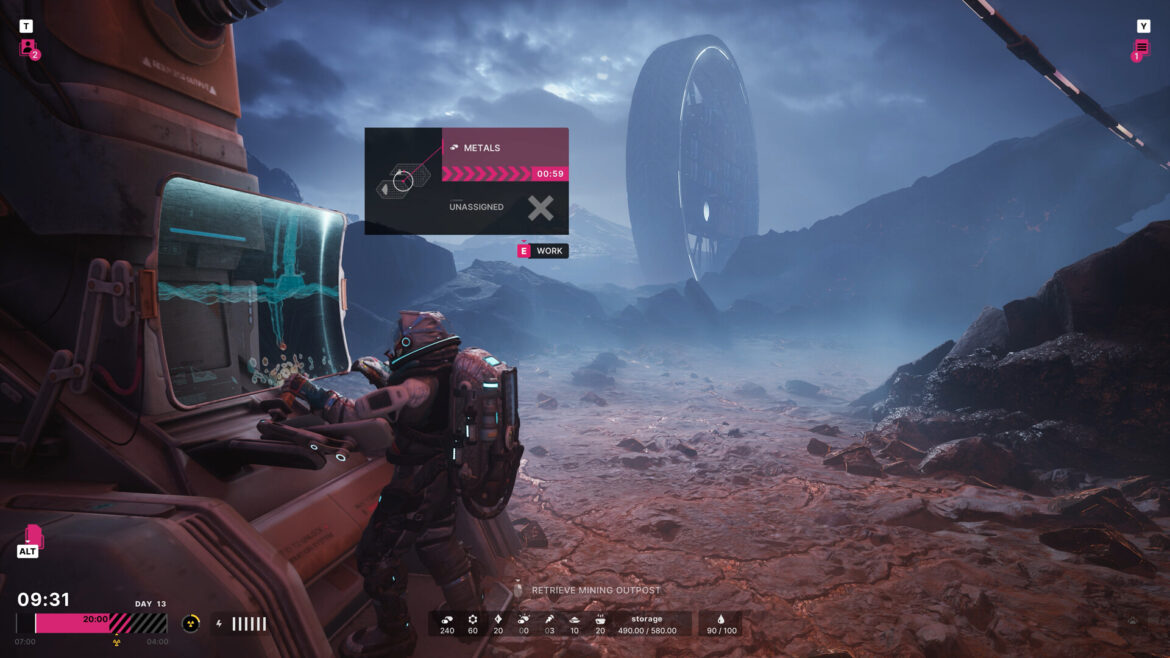
🎮What Is The Alters?
The Alters is a unique sci-fi survival game developed by 11 bit studios, the creators of This War of Mine and Frostpunk. The game blends psychological storytelling with base-building and survival mechanics, putting you in the shoes of Jan — a stranded worker trying to survive on a hostile planet by creating alternate versions of himself.
It’s a brilliant concept and has quickly built a following on Steam. But for many players, especially those eager to dive in right after purchase, an unfortunate bug has caused the game to crash immediately upon launch — or worse, during early gameplay. If you’re experiencing crashes, freezes, or being thrown back to your desktop without warning, you’re not alone.
The good news? There are solutions that have worked for many players — and we’ve compiled them all here.
🔧 Common Fixes for The Alters Crashing on Steam
Before diving into the advanced workaround, let’s go over the basic fixes that solve most game crash issues on Steam. These steps are recommended by both Valve and the game developers.
✅ 1. Verify the Integrity of Game Files
Sometimes the game doesn’t download properly. To ensure all the files are intact:
- Open Steam.
- Go to Library > Right-click on The Alters > Properties.
- Under the Installed Files tab, click Verify Integrity of Game Files.
Steam will check for any missing or corrupted files and re-download them.
✅ 2. Update Graphics Drivers & Windows
Outdated drivers are one of the most common reasons games crash.
- Update your GPU drivers from NVIDIA GeForce Experience or AMD Adrenalin (depending on your graphics card).
- Also, run Windows Update to make sure your OS is fully updated.
This ensures compatibility with the latest game and graphics APIs.
✅ 3. Perform a Clean Boot (Recommended)
A clean boot stops unnecessary third-party applications from interfering with your game.
- Press
Windows + R, typemsconfig, and hit Enter. - Under the Services tab, check Hide all Microsoft services and click Disable all.
- Go to the Startup tab > Open Task Manager and disable all startup apps.
- Restart your PC and try launching the game again.
✅ 4. Reinstall the Game or Steam
If none of the above works, try:
- Uninstalling and reinstalling The Alters.
- If the problem persists, uninstall and reinstall Steam itself (back up your games if needed).
These methods fix any deep-rooted corruption that may have crept in.
🧠 Advanced Fix: Add a System Environment Variable (Safe Workaround)
If all else fails — and you’ve tried every fix under the sun — here’s a strange but proven workaround discovered in a German forum. It targets certain CPU chipsets that seem to conflict with Steam games like The Alters.
⚙️ Steps to Apply the Workaround:
1. Open System Properties
- Press
Windows + Rto open the Run dialog. - Type
SystemPropertiesAdvancedand hit Enter.
2. Add Environment Variable
- Click on Environment Variables.
- Under the System Variables section, click New.
Fill out the fields exactly as follows:
- Variable name:
OPENSSL_ia32cap - Variable value:
~0x20000000
✅ Note: That symbol
~is a tilde (found on your keyboard just under the ESC key). Make sure you copy and paste this exactly — capitalization matters.
3. Save and Restart
- Click OK on all windows to apply the setting.
- Restart your PC completely.
After rebooting, open Steam and try launching The Alters again.
💡 Why This Works (Briefly Explained)
Although this fix seems unusual, it disables certain cryptographic CPU instructions used by OpenSSL (a security protocol used by many modern apps). On some Intel processors, these instructions conflict with Steam or certain Unreal Engine-based games, causing crashes.
This tweak tells your system to ignore a specific instruction set during gameplay — effectively stopping the crash without harming your system or game performance.
🧪 Does This Work for Other Steam Games?
Yes! Many players have used this method to fix crashing issues with other titles that rely on similar engine behavior, especially new releases built with Unreal Engine 4/5.
Still, there’s no guarantee you’ll need this for every game. For The Alters, though, this workaround has been the lifesaver for many.
🎉 Final Thoughts
Game crashes are frustrating, especially when they rob you of your excitement right at launch. But with the steps above — from the standard methods to the advanced environment variable tweak — you should be able to fix The Alters crashing on Steam and enjoy the amazing journey it offers.
If this guide helped you:
- ✅ Share it with fellow gamers.
- 💬 Drop a comment if you found another fix that worked.
- 🎮 Game on!
🔄 Quick Recap of Fixes
| Fix | Description |
|---|---|
| ✅ Verify Game Files | Checks and repairs corrupted files |
| 🔄 Update Drivers | Ensures compatibility with new games |
| 🧹 Clean Boot | Removes interference from background apps |
| 🔁 Reinstall Game/Steam | Fixes persistent file or install issues |
| ⚙️ Add OPENSSL_ia32cap Variable | Fixes chip-related crash conflicts |
