

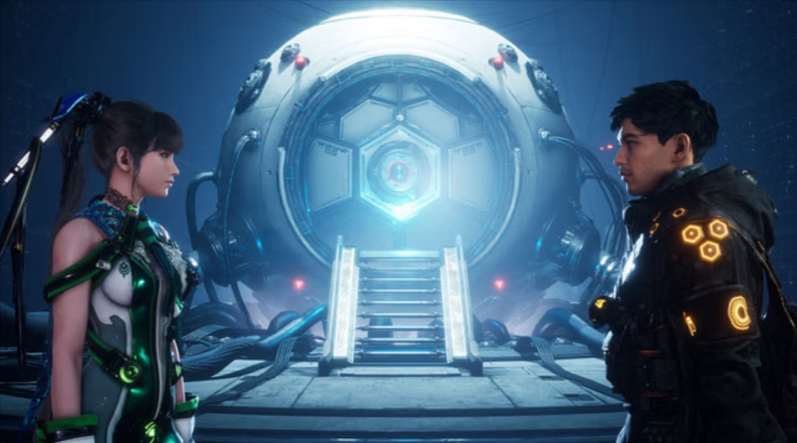
If you’re diving into the futuristic, fast-paced action of Stellar Blade on Steam and experiencing frequent game crashes, you’re not alone. This issue is common among new game launches and can usually be resolved with a few system or Steam-side tweaks.
In this guide, we’ll walk you through proven methods to fix Stellar Blade crashing on Steam, so you can get back to enjoying the game without interruptions.
🔍 Introduction to Stellar Blade
Stellar Blade is a visually stunning action RPG developed by SHIFT UP, known for its high-fidelity graphics, futuristic world-building, and adrenaline-pumping combat. While it’s made a significant impact in the gaming community, some PC gamers have reported issues, particularly crashing problems when launching the game or during gameplay via Steam.
These crashes could be due to corrupted files, outdated drivers, compatibility issues, or problems with system permissions.
Let’s explore how to fix them step by step.
✅ 1. Verify Integrity of Game Files on Steam
The first and easiest fix is to verify the game files through Steam:
Steps:
- Open Steam.
- Navigate to your Library.
- Right-click on Stellar Blade.
- Click on Properties.
- In the left-hand menu, go to Installed Files.
- Select Verify integrity of game files.
Steam will now scan your Stellar Blade installation and replace any missing or corrupted files. This process usually takes a few minutes and is often the simplest way to fix random crash issues caused by incomplete downloads or installation corruption.
Why this works: Crashes are often the result of a few corrupted or missing files, especially after updates or during installation. Verifying game integrity ensures every file is exactly where it should be.
🛠️ 2. Run the Game as Administrator
Running Stellar Blade with elevated permissions can prevent crashes caused by access restrictions on system files or folders.
Steps:
- While still in Steam’s Properties section, click Browse next to the “Installed Files” tab.
- Locate the main game executable file (usually ends in
.exe, for example:StellarBlade.exe). - Right-click the
.exefile and select Properties. - Go to the Compatibility tab.
- Check the box that says Run this program as an administrator.
- Click Apply and then OK.
Now relaunch the game through Steam.
Why this works: Some games require elevated system permissions to run smoothly. Running as an administrator grants the game full access to essential system resources and avoids permission-based crashes.
🎮 3. Update Your Graphics Drivers
Another major cause of crashing—especially in newly released, graphics-intensive titles like Stellar Blade—is outdated or incompatible GPU drivers.
Steps to update your GPU driver:
- Click Start and search for Device Manager.
- Expand the Display Adapters section.
- Right-click your graphics card (e.g., NVIDIA GTX, AMD Radeon) and select Update driver.
- Choose Search automatically for drivers.
If Windows doesn’t find the latest drivers:
- Visit your GPU manufacturer’s website directly:
- NVIDIA Driver Downloads
- AMD Driver Support
- Intel Drivers & Software
Download and install the latest driver for your exact model.
- Restart your PC.
- Launch Stellar Blade again.
Why this works: Graphic drivers are updated frequently, especially around the release of major game titles. Using outdated drivers can result in crashes, graphical glitches, or even game refusal to start.
📌 Bonus Tips If the Above Steps Don’t Work
If Stellar Blade is still crashing after the steps above, consider trying these additional fixes:
1. Disable Overlays
- Disable Steam Overlay or any third-party overlays like Discord or NVIDIA GeForce Experience.
2. Reinstall the Game
- If file verification doesn’t help, consider fully uninstalling and reinstalling Stellar Blade.
3. Close Background Applications
- Applications like antivirus software, screen recorders, or memory-intensive programs can interfere with game performance. Close unnecessary apps before launching the game.
4. Update Windows
- Ensure you’re running the latest version of Windows 10/11. Use Windows Update to check for system updates.
