

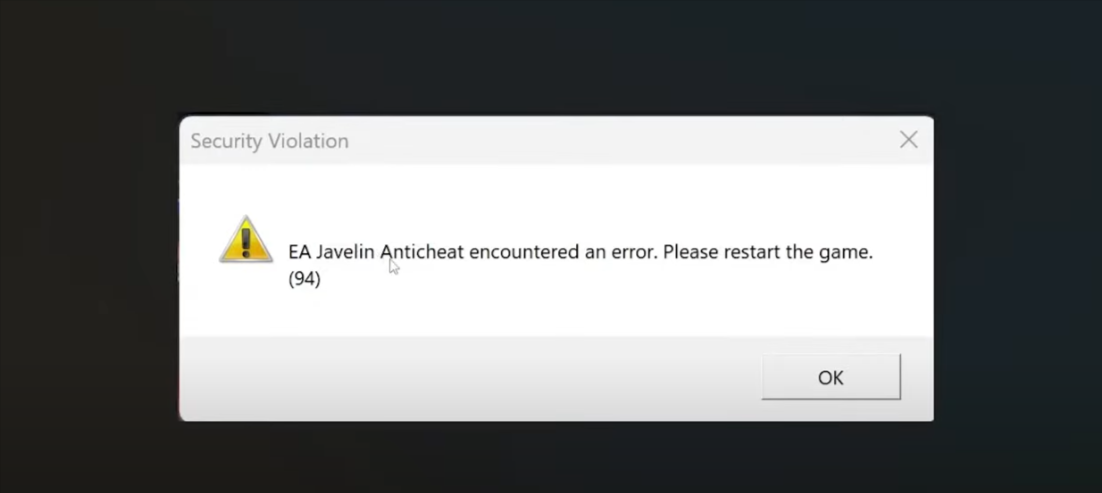
If you play EA titles like Battlefield 2042, FIFA/FC 25, or F1 25, you may have come across the dreaded error message:
“EA Javelin Anticheat encountered an error.”
This problem has frustrated many players because it can appear out of nowhere—even if the game has worked fine for months. In some cases, users report that the error began after uninstalling another EA game, updating Windows, or installing unrelated programs.
The EA Javelin Anticheat system is designed to protect games from cheating software, but sometimes it mistakenly blocks legitimate background apps, drivers, or outdated components on your PC. Fortunately, several fixes have worked for different players.
In this guide, we’ll walk through the most common solutions.
What Causes the EA Javelin Anticheat Error?
From user reports and troubleshooting, the main causes seem to be:
-
Background programs conflicting with Javelin – apps like Smooth Video Project (SVP), codecs, or video enhancement tools may be flagged as cheats.
-
Outdated Javelin Anticheat installation – some games fail to detect or update the anticheat properly.
-
Corrupted files after uninstalling EA games – for example, removing FIFA 24 may break files that FC 25 still needs.
-
Antivirus or malware interference – in rare cases, antivirus tools detect miners or other suspicious files interfering with Javelin.
-
Outdated Windows or drivers – system instability can cause the anticheat to crash.
-
EA App/Steam conflicts – depending on the title, some EA games need both Steam and the EA App running, while others don’t.
6 Solutions That have Worked for Most Players
1. Close Conflicting Background Programs
Programs that run silently in the background can interfere with Javelin Anticheat. Video-enhancement tools, codec packs, or media software such as Smooth Video Project (SVP) may be misidentified as cheats.
How to fix:
-
Open Task Manager (Ctrl + Shift + Esc).
-
End tasks for video-editing, codec, or media-enhancing software.
-
Disable these programs from running automatically at Windows startup.
2. Update Javelin Anticheat Manually
Sometimes the anticheat tool does not update automatically, which causes compatibility errors with the latest games.
How to fix:
-
Navigate to the game’s installation folder.
-
Open the EA Anticheat folder.
-
Run
EAAntiCheat.Installer.exeas administrator. -
Select your game from the dropdown and click Update.
-
Restart your PC and launch the game.
3. Reinstall Javelin Anticheat
If updating doesn’t work, a clean reinstall may solve corrupted file issues.
How to fix:
-
Go to Control Panel > Programs and Features.
-
Uninstall EA Anticheat.
-
Restart your computer.
-
Launch the game again — it will automatically prompt you to reinstall the anticheat.
4. Run Antivirus and Malware Scan
Suspicious files or malware on your system may conflict with Javelin Anticheat. Running a scan ensures that no hidden programs are interfering.
How to fix:
-
Use Windows Defender or a third-party antivirus tool to run a full system scan.
-
Quarantine or remove any detected threats.
-
Restart your system and relaunch the game.
5. Keep Windows and Drivers Updated
Outdated system software or drivers can prevent Javelin from functioning correctly.
How to fix:
-
Run Windows Update to install the latest patches.
-
Update your graphics card drivers (NVIDIA, AMD, or Intel).
-
Update your chipset and network drivers if needed.
6. Verify Game Launcher Requirements
Some EA titles require both Steam and the EA App to be running, while others only need one. Launch errors may occur if the correct setup isn’t used.
How to fix:
-
If your game is on Steam, ensure Steam is running before launching.
-
If your game requires the EA App, open it manually before starting the game.
7. Fresh Windows Install (Last Resort)
If none of the above methods resolve the problem, a clean installation of Windows may be required. This ensures no corrupted files, outdated drivers, or hidden conflicts remain on your system.
How to fix:
-
Back up your important data.
-
Reinstall Windows from scratch.
-
Install all Windows updates.
-
Install chipset and GPU drivers.
-
Reinstall your EA game and let it install Javelin Anticheat fresh.
