

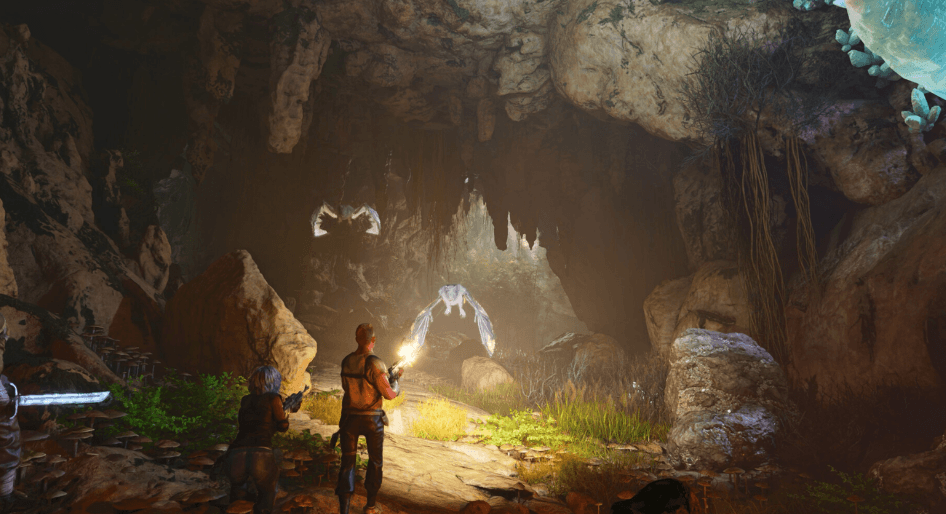
ARK: Survival Ascended has gained a reputation for its stunning visuals, expansive open world, and immersive survival mechanics. As a remake of the original ARK: Survival Evolved, it utilizes Unreal Engine 5 to deliver an overhauled experience with modern graphics and improved mechanics. However, many players have reported crashing issues—especially on the Steam version of the game. If you’re facing frequent crashes, random freezes, or startup errors, don’t worry. This guide will walk you through several proven steps to fix ARK: Survival Ascended crashing on Steam.
🔧 Common Reasons Why ARK: Survival Ascended Crashes
Before jumping into the fixes, let’s understand why the game may be crashing:
- Corrupted or missing game files
- Insufficient user permissions
- Outdated GPU drivers
- Compatibility issues with Windows settings
- Overlays or background apps interfering with gameplay
- GPU not running the latest manufacturer update
Let’s now go step-by-step to resolve these issues.
✅ Step 1: Verify the Integrity of Game Files
One of the most effective and easiest fixes is verifying the game files on Steam. Sometimes, a file may go missing or get corrupted during updates or installation.
Here’s how:
- Open Steam.
- Go to your Library.
- Right-click on ARK: Survival Ascended.
- Click Properties.
- Select the Installed Files tab.
- Click “Verify integrity of game files.”
Steam will now scan your game files and replace any missing or corrupted files. This process may take several minutes, depending on your drive speed.
✅ Step 2: Run the Game as Administrator
Running the game with administrator privileges can help bypass restrictions or permission issues that prevent it from launching correctly.
Do this:
- Open Steam.
- Go to Library.
- Right-click ARK: Survival Ascended.
- Click Properties > Installed Files > Browse (to open the game folder).
- Locate the main
.exefile (usually the largest one). - Right-click the
.exefile > Properties. - Navigate to the Compatibility tab.
- Check the box “Run this program as an administrator.”
- Click Apply, then OK.
Launch the game again and see if the crash persists.
✅ Step 3: Update Your Graphics Drivers
Outdated or incompatible graphics drivers are a common reason for crashes in high-performance games like ARK: Survival Ascended.
To update your drivers:
- Search for “Device Manager” in your Windows search bar.
- Expand the Display Adapters section.
- Right-click on your graphics card and click Update Driver.
- Choose “Search automatically for drivers.”
If no updates are found, go to the official website of your GPU manufacturer:
- NVIDIA: www.nvidia.com/Download
- AMD: www.amd.com/en/support
- Intel: www.intel.com/content/www/us/en/support/detect.html
Manually download and install the latest version, then restart your PC.
🧪 Optional Steps (If the Above Doesn’t Work)
If ARK is still crashing after trying the main steps above, here are a few more things to try:
🔹 Disable Steam Overlay
- Go to Steam Library.
- Right-click the game > Properties.
- Under General, uncheck “Enable the Steam Overlay while in-game.”
🔹 Lower In-Game Graphics Settings
- Use Low or Medium Presets to reduce GPU load.
- Disable features like Ray Tracing, Motion Blur, or DLSS.
🔹 Temporarily Disable Antivirus or Firewall
- Some antivirus software falsely flags game files and blocks them. Add ARK to the exception list or temporarily disable your antivirus to test.
