

Ever forgotten your Instagram password and wished there was a simple way to retrieve it? You’re not alone — and the truth is, there is a practical way to get it back… but it’s not where most people look.
Many users don’t realize this, but your phone/computer browser often saves your Instagram login details when u click save save logins on different browsers like Chrome, Mozilla Firefox, Edge, Safari. Most cases first time your logging into your Instagram on a browser, this is first prompt your browser tells you to do, save password or Never. In most cases we always click Save password but then we forget that we saved it when we want to access the password. In this guide, we’ll walk you through how to find both your Instagram username and saved password, step by step.
🔐 Step 1: Check Saved Passwords in Your Phone or Computer Browser (Most Effective)
Why this works:
When you log into Instagram through a web browser, like Chrome or Safari — even on your phone — your device may offer to save your login details. Most people just tap “Save” and forget about it. Later, that password sits securely in your device’s password manager, quietly waiting to be retrieved when needed.
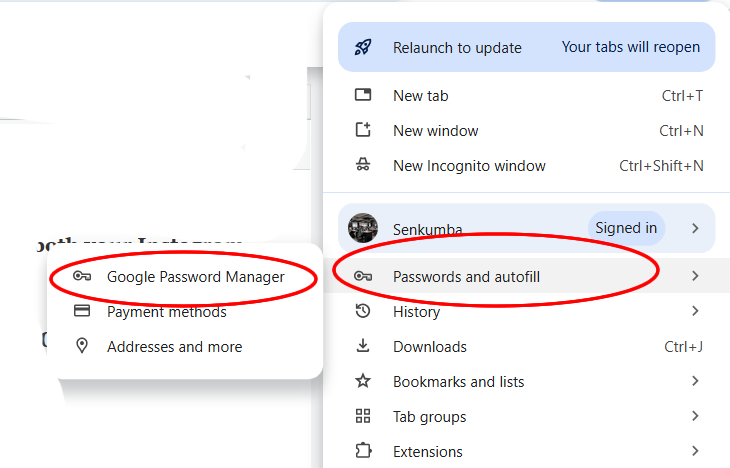
Here’s how to check it:
✅ On Android (Using Chrome):
-
Open the Chrome app.
-
Tap the three dots (⋮) in the top-right corner.
-
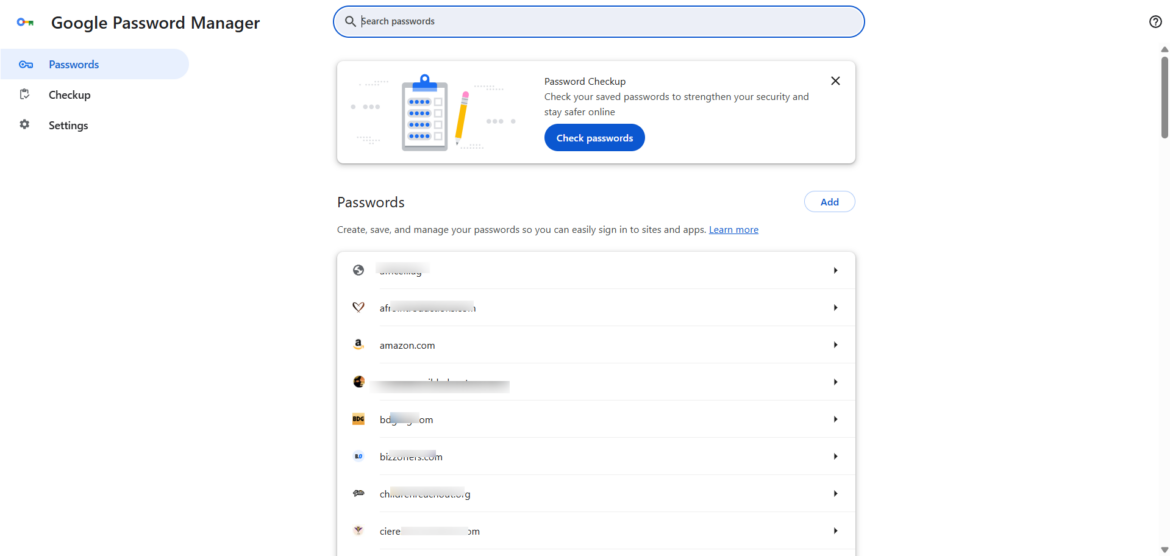
Tap Settings → Google Password Manager
-
Tap the search icon 🔍 and type Instagram.
-
If a result appears, tap it.
-
To view the password, tap the eye icon and confirm with your fingerprint, pattern, or PIN.
🔑 You’ll see both your Instagram username (email or phone) and the saved password.
🍎 On iPhone (Using Safari or Chrome):
-
Open your iPhone’s Settings.
-
Scroll down and tap Passwords (you’ll need Face ID or your phone passcode to proceed).
-
Use the search bar at the top and type Instagram.
-
Tap the saved login result to view your username and password.
💡 This works if you ever logged into Instagram on Safari or Chrome and chose “Save Password” when prompted.
💻 On Desktop (Google Chrome):
-
Open Chrome on your computer.
-
Click the three dots (⋮) in the top-right corner.
-
Go to Settings → Autofill → Passwords.
- Google Password Manager
-
Search for Instagram using the search box.
-
If it appears, click the eye icon next to it (you may be asked for your computer login password).
⚠️ If Nothing Appears
If you don’t see anything under saved passwords, it means your device or browser was not set to remember passwords, or you declined the prompt when logging in.
Don’t worry — you can still recover your account. Keep reading.
👤 Step 2: Find Your Instagram Username
If you’re already logged into Instagram on your phone but unsure of your exact username:
-
Open the Instagram app.
-
Tap the profile icon at the bottom right.
-
Your username appears at the top of your profile (e.g.,
@yourhandle123).
This is the name people use to search for you or tag you in posts.
🛡️ Step 3: Use “Saved Login Info” to Stay Logged In
To avoid needing your password every time, Instagram provides a handy option to stay logged in:
-
Open the Instagram app.
-
Tap your profile icon → menu (≡) at the top right.
-
Go to Settings and Privacy → Accounts Centre → Password and security.
-
Tap Saved Login Info and turn it ON.
✅ This keeps you logged in on your phone, so even if you forget the password, you can access your account as long as you don’t log out.
🔁 Step 4: Reset Your Password If You’re Locked Out
If your browser didn’t save your password and you’re logged out:
-
Open the Instagram app or go to Instagram.com.
-
Tap “Forgot password?”
-
Choose to reset via:
-
Email address
-
Phone number
-
Facebook (if linked)
-
You’ll be sent a link to reset and create a new password.
🔄 Step 5: Change Your Password (If You Know the Current One)
If you’re logged in and want to change your password:
-
Go to your profile → menu (≡) → Settings and privacy.
-
Tap Accounts Centre → Password and security → Change password.
-
Enter your current password and create a new one.
🔐 You must know the current password to change it. Instagram won’t show it to you for security reasons.
🧠 Final Thoughts: Don’t Forget Your Browser is Your Best Friend
Most people don’t realize that browsers like Chrome, Safari, and Firefox quietly store your login info when you choose “Save Password.” These saved logins can be retrieved anytime — and are often the fastest, easiest way to recover lost passwords, especially if you’ve ever logged in through the web version of Instagram.
✅ Summary
| Action | What it Helps With |
|---|---|
| 🔍 Check saved passwords in browser or phone | Find your Instagram password |
| 👤 Open the app and go to your profile | See your Instagram username |
| 🛡️ Enable “Saved Login Info” | Stay logged in without needing a password |
| 🔁 Use “Forgot password?” | Reset if you’re locked out |
| 🔄 Change password in settings | Update it, if you still remember it |
