

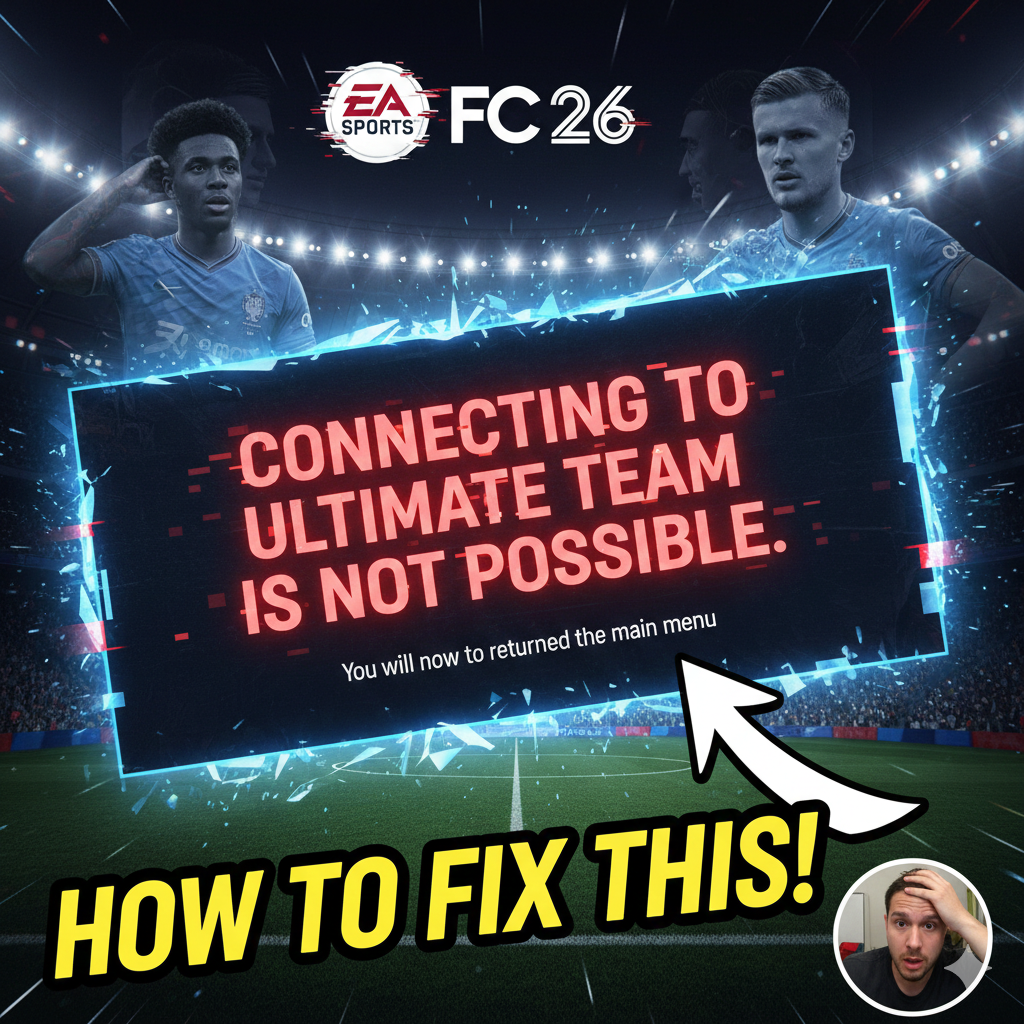
If you’ve just sat down to grind some Rivals or check your latest SBCs only to be hit with the message: “Connecting to Ultimate Team is not possible at the moment. You will now be returned to the main menu,” you aren’t alone.
This error is a common frustration in EA Sports FC 26, the third installment in EA’s flagship football simulation series. The game continues to push the boundaries of “The World’s Game,” featuring over 20,000 licensed players, 700+ clubs, and major tournaments like the UEFA Champions League. However, with millions of players connecting to Ultimate Team daily to build their dream squads, the servers can occasionally buckle under the pressure.
Here is a detailed guide on why this is happening and how to resolve it.
🔍 The Root Cause: It’s Usually Not You
The first thing to understand about this error is that it rarely stems from your console, PC, or home internet. In the vast majority of cases, the issue is on EA’s end.
When thousands of players try to log in simultaneously—especially during “content time” (when new promos or packs drop)—the online services can experience significant lag or total outages. If you see this message, it typically means the EA servers are either down for unscheduled issues or offline for a maintenance window.
How to Verify Server Status
Before you start dismantling your home network, check if the problem is widespread:
-
DownDetector: Search for “EA” on DownDetector. If you see a massive spike in user reports, the servers are officially having a moment.
-
EA Sports FC Direct Communication: Check the official @EASPORTSFC or @EASFCDirect accounts on X (formerly Twitter) for announcements regarding scheduled maintenance.
🛠️ Step-by-Step Fixes to Try
1. The Classic Power Cycle
Sometimes the “handshake” between your game and the server gets stuck.
-
Restart the Game: Completely close the FC 26 app and relaunch it.
-
Restart Your Device: Shut down your console (PS5, Xbox Series X|S, Switch) or PC entirely and turn it back on.
-
Reboot Your Router: Unplug your internet router for 30 seconds, then plug it back in.
2. The Web App “Squad” Trick
A community-proven fix involves bypassing the console menu entirely:
-
Log in to the FC 26 Web App or Companion App on your phone.
-
Go to your Active Squad.
-
Create a New Squad, leave it blank (or just put one player in), and set it as your Active Squad.
-
Log out of the app and try relaunching the game on your console/PC.
3. Reset or Change Your EA Password
In 2026, EA’s security protocols have become stricter. Sometimes, a “Connection Failed” error is actually a security flag triggered by your account. Resetting your password can force the server to re-verify your credentials and clear the “stuck” login state.
How to Change Your Password:
-
Go to the EA Login Page.
-
Click “Forgot Your Password?” (even if you know it, a fresh reset is more effective for clearing errors).
-
Enter your email address or EA ID.
-
Check your email for the Verification Code.
-
Set a new, strong password that you haven’t used before.
-
Pro Tip: While you’re there, ensure Two-Factor Authentication (2FA) is turned on. This prevents unauthorized logins that can cause server conflicts.
⏳ The “Wait and See” Approach
If you have confirmed via DownDetector that thousands of others are reporting issues, the best solution is patience.
Usually, these outages are resolved within a few hours. Use this time to step away from the pitch—your players will still be there once EA restores service.
Summary Checklist
| Action | Why it works |
| Check DownDetector | Confirms if the issue is a global EA server outage. |
| Restart Game/Router | Refreshes the local connection and clears cache. |
| Update EA Password | Forces a fresh security handshake with the server. |
| Use the Web App | Resets potentially “glitched” active squad files. |
