

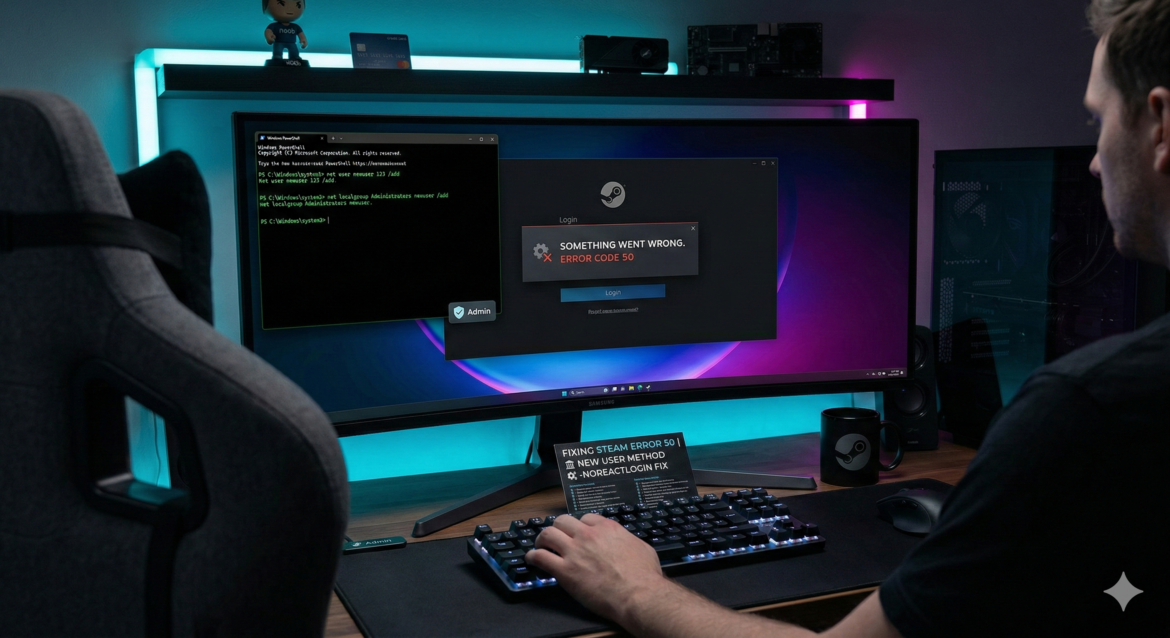
Steam Error Code 50 remains one of the most frustrating barriers for gamers. This error typically occurs during the login phase, displaying the message: “Something went wrong while attempting to sign you in.” While many users assume this is a server outage or a password issue, technical analysis shows that Error Code 50 is often tied to a corrupted user profile environment or a failure in Steam’s modern “React-based” login UI. When the local Windows user profile has restricted permissions or cached conflicts, Steam’s handshake with the server fails.
This guide provides a professional, high-level fix using Windows PowerShell to bypass profile corruption and restore access to your library.
Why This Fix Works: The “New User” Strategy
The logic behind this specific solution is to create a “Clean Slate.” By creating a secondary administrative user on your PC, you bypass any registry errors or file permission blocks in your primary Windows account that are preventing Steam from “talking” to the login servers.
Step-by-Step: Fixing Error Code 50 via PowerShell
Follow these steps precisely to create a new administrative environment for Steam.
1. Open PowerShell as Administrator
To modify user accounts, you need elevated permissions.
-
Press the Windows Key.
-
Type PowerShell.
-
Right-click the result and select Run as Administrator.
2. Create the New User Account
Copy and paste the following code into the PowerShell window and press Enter:
net user newuser 123 /add
Note: In this command,
newuseris your new username and123is the temporary password. You can change these to anything you prefer.
3. Grant Administrative Privileges
Steam requires admin rights to update its internal files. Type this second code and press Enter:
net localgroup Administrators newuser /add
4. Launch Steam as the New User
You do not need to log out of Windows entirely.
-
Locate your Steam shortcut on the desktop.
-
Hold the Shift key and Right-Click the Steam icon.
-
Select Run as different user.
-
Enter the credentials you just created:
-
Username:
newuser -
Password:
123
-
5. Sign In and Verify
Because this is a fresh environment, Steam will ask you to log in to your account. Enter your standard Steam credentials. If Error Code 50 was caused by local profile corruption, you should now reach your Library successfully.
Alternative Solution: Bypassing the React Login
If the PowerShell method seems too complex, many users in 2026 have found success by forcing Steam to use its legacy login system, which is less prone to Error Code 50.
-
Right-click your Steam Shortcut and select Properties.
-
In the Target box, go to the very end of the text (after the quotes).
-
Add a space and type:
-noreactlogin -
Click Apply and relaunch Steam.
Summary Checklist for Steam Stability
| Method | Action | When to Use |
| PowerShell Fix | Create Admin User | If the error is caused by Windows profile corruption. |
| -noreactlogin | Shortcut Modification | If the modern Steam UI is failing to load. |
| Clear Temp Files | %temp% Cleanup |
If you suspect corrupted local cache files. |
| DNS Flush | ipconfig /flushdns |
If the error is tied to a network “handshake” failure. |
