

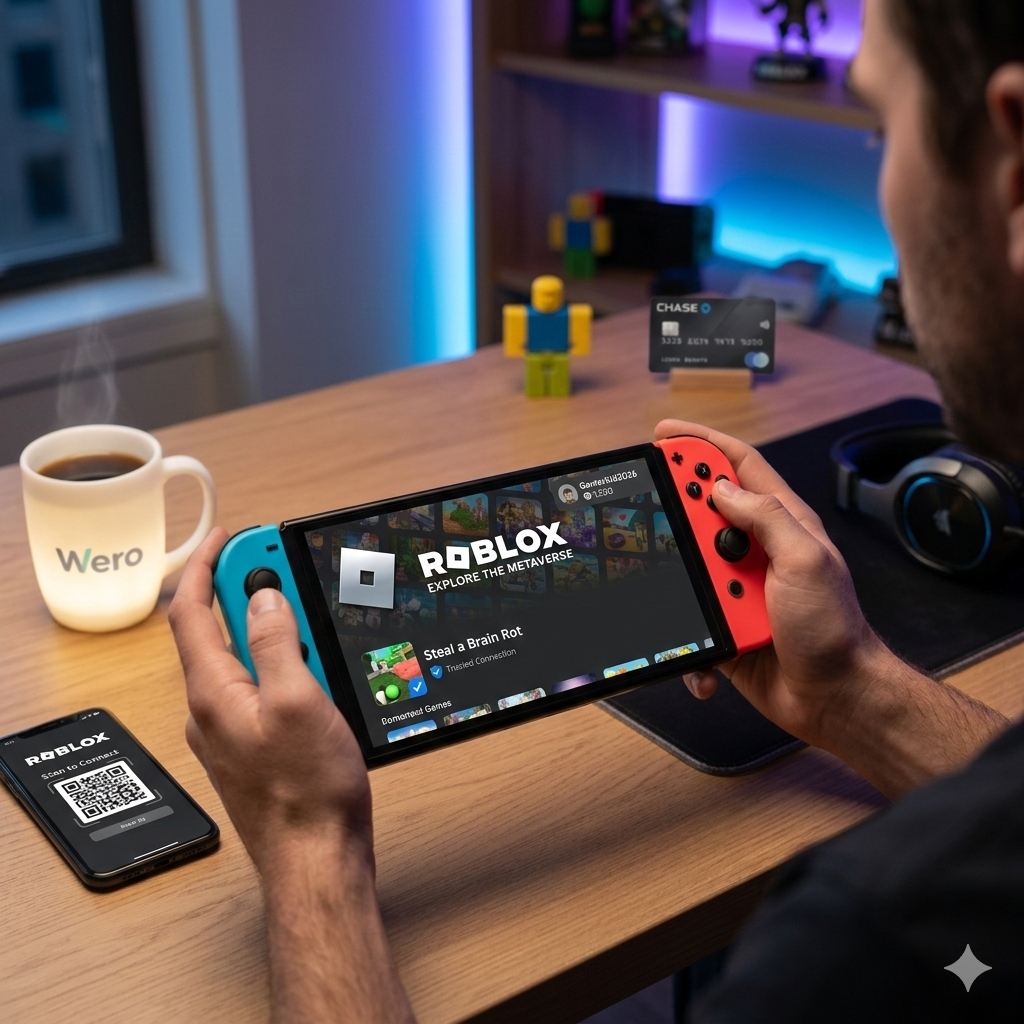
The Nintendo Switch is home to some of the greatest titles in gaming history, from Zelda to Mario. However, for Roblox players who own a Nintendo Switch, there has always been one nagging question: “Where is the Roblox app?”
As of now, Roblox is still not officially available on the Nintendo eShop. While this may be disappointing, the community has developed several creative methods to bridge the gap. Whether you’re looking for a clever workaround or you’re parents helping your kids improve their mobile gaming setup, this guide covers everything you need to know about playing Roblox on (or with) your Nintendo Switch.
The State of Roblox on Nintendo Switch in 2026
Despite the massive popularity of both platforms, an official “native” app for the Switch has not yet been released. This is largely due to Nintendo’s strict moderation policies and the technical challenges of porting the massive Roblox engine to the Switch’s unique hardware.
However, there is a “hidden” way to access the Roblox website on your console, and a more practical “Pro” method that uses your Switch hardware to enhance your mobile experience.
Method 1: The “DNS” Hidden Browser Workaround
While you cannot “install” the game, you can access the Roblox dashboard using a hidden web browser inside the Switch. This is perfect for checking your character, buying items, or managing your account without a PC.
Practical Steps:
-
Open Settings: From the Switch home screen, go to System Settings.
-
Internet Settings: Select Internet, then click Internet Settings.
-
Select Your Network: Click on your current Wi-Fi and choose Change Settings.
-
Manual DNS: Scroll to DNS Settings and switch it from Automatic to Manual.
-
Enter the Code: * Set the Primary DNS to:
045.055.142.122-
Leave the Secondary DNS as all zeros.
-
-
Connect: Save the settings and click Connect to This Network.
-
Access SwitchBru: The connection will “fail” (this is normal). Click Next, and you will be redirected to the SwitchBru DNS page.
-
Login to Roblox: Select Useful Links, find Roblox.com, and log in.
Note: Because the Switch browser is limited, actual gameplay performance may be laggy or non-functional. This method is best for account management. Remember to switch your DNS back to “Automatic” to play other Switch games online!
🎮 Method 2: The “Joy-Con Pro” Setup (Best for Gameplay)
For mobile players who want to use Joy-Cons with Roblox, this is the superior way to play. Instead of struggling with touchscreen controls, you can use your Switch controllers to play Roblox on your smartphone or tablet.
Practical Steps for Joy-Con Pairing:
-
Enable Bluetooth: Open the Bluetooth settings on your iOS or Android device.
-
Sync the Joy-Cons: Slide the Joy-Cons off your Switch. Press and hold the small Sync button on the flat rail of each controller until the green lights start “dancing.”
-
Pair the Devices: * Look for Joy-Con (L) and Joy-Con (R) in your phone’s Bluetooth list.
-
Tap to pair each one individually.
-
-
Launch Roblox: Open the Roblox app. Most popular games (like BedWars or Adopt Me) will automatically detect the Joy-Cons.
This setup offers the tactile feel of a console while utilizing your phone’s superior processing power. It’s the ultimate fix for players who want the “Switch experience” without the performance lag.
🚀 Pro Tip: Private Servers for Console Players
If you are playing the console version on a PlayStation or Xbox and want a smoother experience, follow Dr. Glitch’s advice on Private Servers.
-
The Issue: Consoles often don’t let you browse specific servers.
-
The Fix: Use a secondary account on your phone to create a private server.
-
Crucial Step: In the server settings on your phone, you must toggle “Allow Friends to Join” to ON. Once your phone account joins the server, your console account can simply join your “Friend” to enter the private room.
Summary Checklist
| Objective | Method | Best For |
| Check Roblox on Switch | DNS Workaround | Catalog, Messages, Account Info |
| Play with Joy-Cons | Bluetooth Pairing | High-precision gameplay on Mobile/iPad |
| Avoid Griefers | Mobile-Created Private Server | Grinding money in games like Steal a Brain Rot |
